
How to Install IPTV on Firestick — Complete 2026 Guide
The Amazon Fire TV Stick is by far the most popular streaming device in the cord-cutting community. With an accessible price point, powerful hardware-accelerated video decoding, and an intuitive Alexa Voice remote, the Firestick transforms any standard HDMI television into a premium entertainment command center.
Because dedicated IPTV players like TiviMate and HOT Player are distributed independently of the standard Amazon Appstore, setting them up requires a quick, one-time process called sideloading. In this comprehensive step-by-step guide, the technical team at CalmaHUB IPTV walks you through installing and configuring IPTV on your Amazon Firestick in less than five minutes.
Phase 1: Preparing Your Firestick for Sideloading
Amazon Fire OS includes a safety setting that prevents unauthorized background app installations. To allow Downloader to install your IPTV player, we must enable Developer Options:
- From your Firestick home screen, click the Settings (gear icon) on the far right.
- Select My Fire TV (or Device & Software on older models).
- Click About. Highlight the name of your device (e.g. Fire TV Stick 4K) and click it rapidly 7 times until you see the on-screen toast notification: "No need, you are already a developer."
- Press the back button once to return to the My Fire TV menu; you will now see a new menu item called Developer Options.
- Open Developer Options and turn Apps from Unknown Sources to ON.
Phase 2: Installing the Downloader App
Downloader by AFTVnews is the universal tool for safely downloading application APK installation packages directly onto Amazon devices.
- Return to your Firestick home screen and click the Find (magnifying glass) icon.
- Type
Downloaderinto the search bar or hold your Alexa voice remote button and say "Downloader". - Select the orange Downloader icon from the search results and click Download / Get.
- Once installed, launch Downloader and grant it permission to access media files when prompted.
Phase 3: Sideloading Your Preferred IPTV Application
Now that Downloader is ready, you can fetch your preferred IPTV player using a direct short-code:
- For TiviMate IPTV Player: Enter code
272483(or download URLtivimate.com) into Downloader's URL bar and click Go. - For HOT Player: Enter code
78522(or visit the official HOT Player download page). - For IPTV Smarters Pro: Enter code
80516to download the verified Smarters APK.
Once the APK file finishes downloading, a prompt will appear automatically asking if you wish to install the app. Click Install. Once completed, click Delete to remove the temporary installation file and free up storage space on your Firestick.
Phase 4: Connecting Your CalmaHUB IPTV Credentials
Now that your player application is installed on your Firestick:
- Launch your newly installed IPTV player from your apps grid.
- Select Login with Xtream Codes API (recommended over typing long M3U URLs).
- In the Any Name field, enter
CalmaHUB IPTV. - Enter the Server URL, Username, and Password sent to your email or WhatsApp upon subscribing.
- Click Add User or Login.
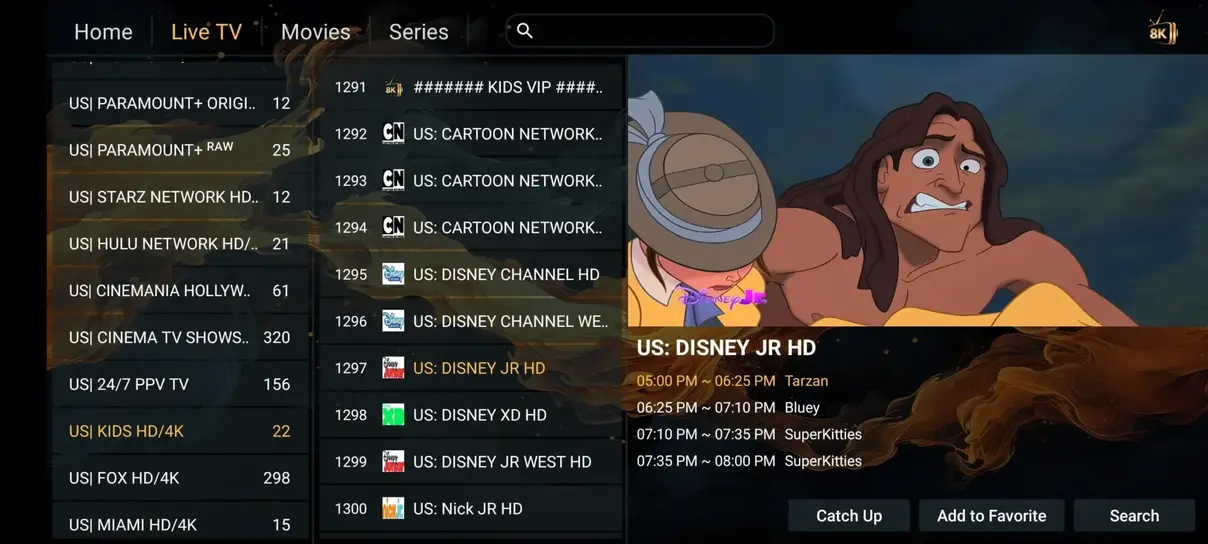
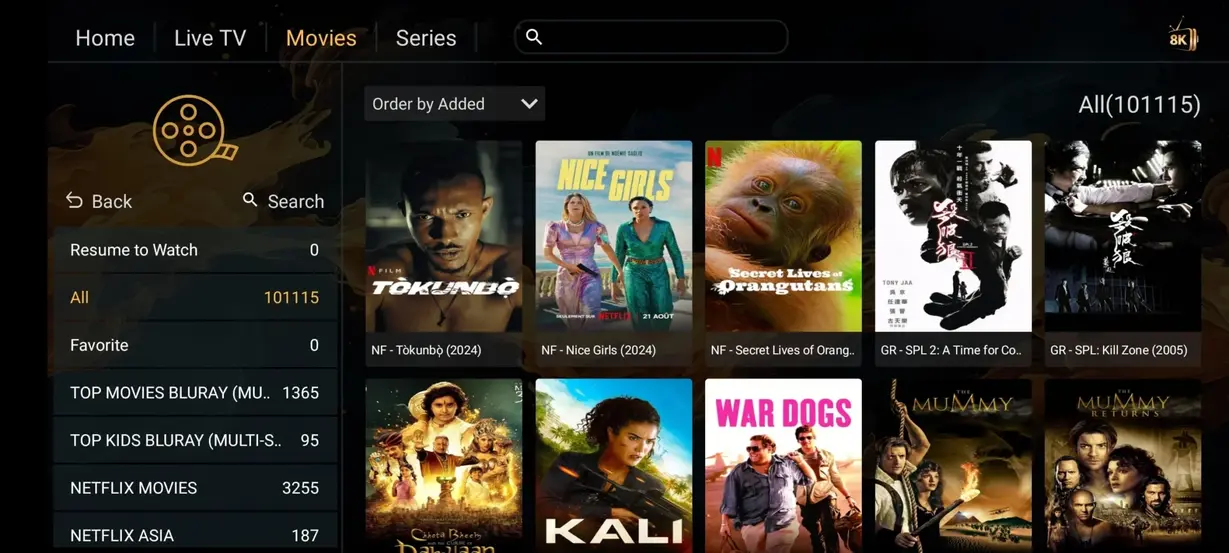
In approximately 10 to 15 seconds, your Firestick will ingest our complete database of 35.000+ live international channels, 142.000+ VOD movies and series, and full 7-day EPG program timetables.
Top Tips for Bufferless Firestick Streaming
To keep your Firestick streaming smoothly during high-stakes football matches:
- Use the HDMI Extender: Always attach the small flexible HDMI dongle included in the Amazon box. It moves the Firestick away from the hot metal chassis of your television, drastically reducing Wi-Fi antenna interference.
- Consider an Ethernet Adapter: If your Wi-Fi router is located in another room, investing in Amazon's official Ethernet adapter eliminates wireless packet loss entirely.
- Clear Cache Monthly: Go to Settings → Applications → Manage Installed Applications → select your IPTV player → Clear Cache to keep playback snappy.
For detailed instructions on other devices, review our complete installation manual.
Troubleshooting Common Firestick Sideloading Issues
While installing IPTV on an Amazon Fire TV device is typically straightforward, occasionally users encounter minor hurdles during initial setup. Here is how to overcome the most common hiccups:
- Developer Options Missing on Newer Fire OS Updates: Amazon recently hid the Developer Options menu behind an Android easter egg on Fire OS 7 and 8. If you do not see Developer Options in your Settings, go to Settings -> My Fire TV -> About, highlight the device name, and press the remote Select button 7 times in a row until the message 'You are now a developer' pops up.
- App Not Installed Error in Downloader: This error occurs if your Firestick has insufficient free storage space or if a corrupt partial download was saved. Open your Fire TV Settings -> Applications -> Manage Installed Applications -> Downloader, clear cache, and verify you have at least 500 MB of free storage.
- Remote Control Navigation Stuck: If an application requires touch or mouse input, you can use the free Mouse Toggle for Fire TV app to display a virtual mouse pointer controlled via your directional navigation pad.
Once configured properly, the Amazon Firestick provides an unbeatable combination of portable streaming power, voice control convenience, and 4K visual clarity that pairs effortlessly with your CalmaHUB IPTV subscription.
Ready to Transform Your Amazon Firestick?
Unlock 35.000+ live channels in 4K resolution, 142.000+ movies on demand, and 99.99% anti-freeze stability with CalmaHUB IPTV. Tested and verified on all Fire TV models.
View Subscription Plans →